

Changing your Password (Macs)

Aug 20, 2026
180

If you are on an Apple Mac device and connected to the Boaz WiFi network, you can follow these directions to change your password.
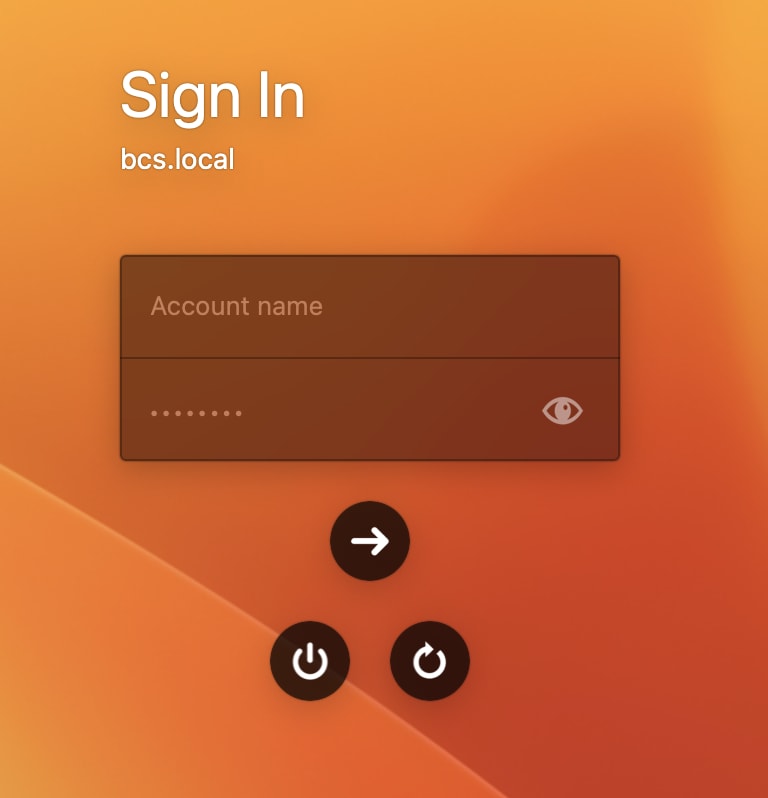
- Log into the device (remember to use just your username, not your full email address).
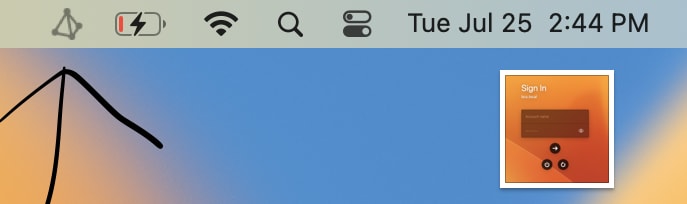
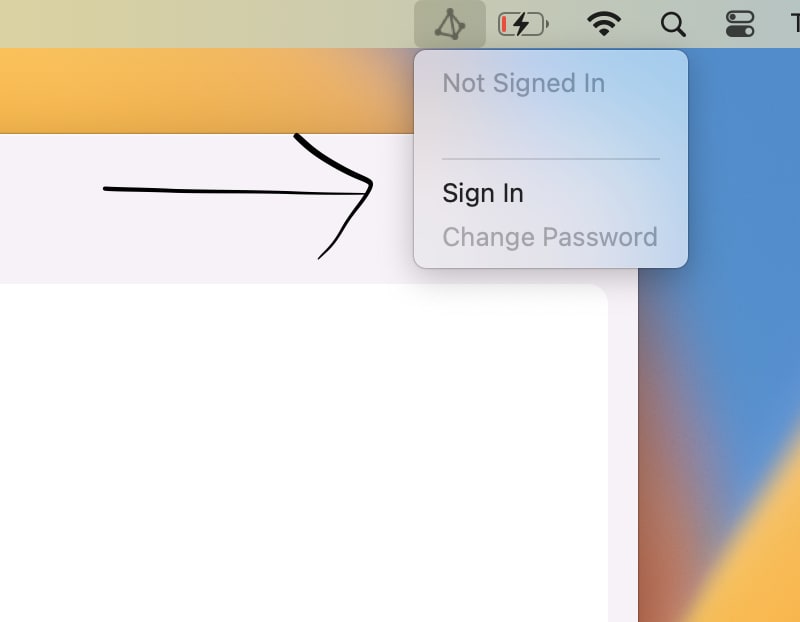
- Locate the triangle shape in the top right and click on it.
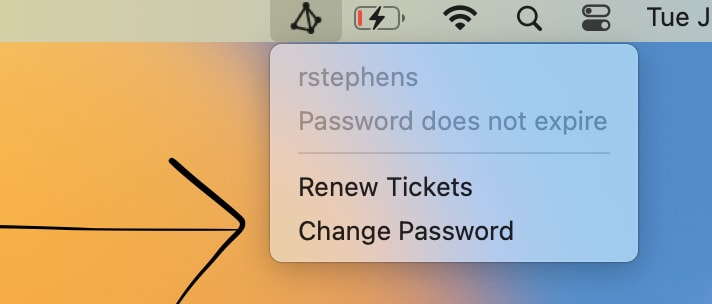
- If you have not signed in, click "Sign In", then "Change Password". If you have already signed in, click "Change Password".
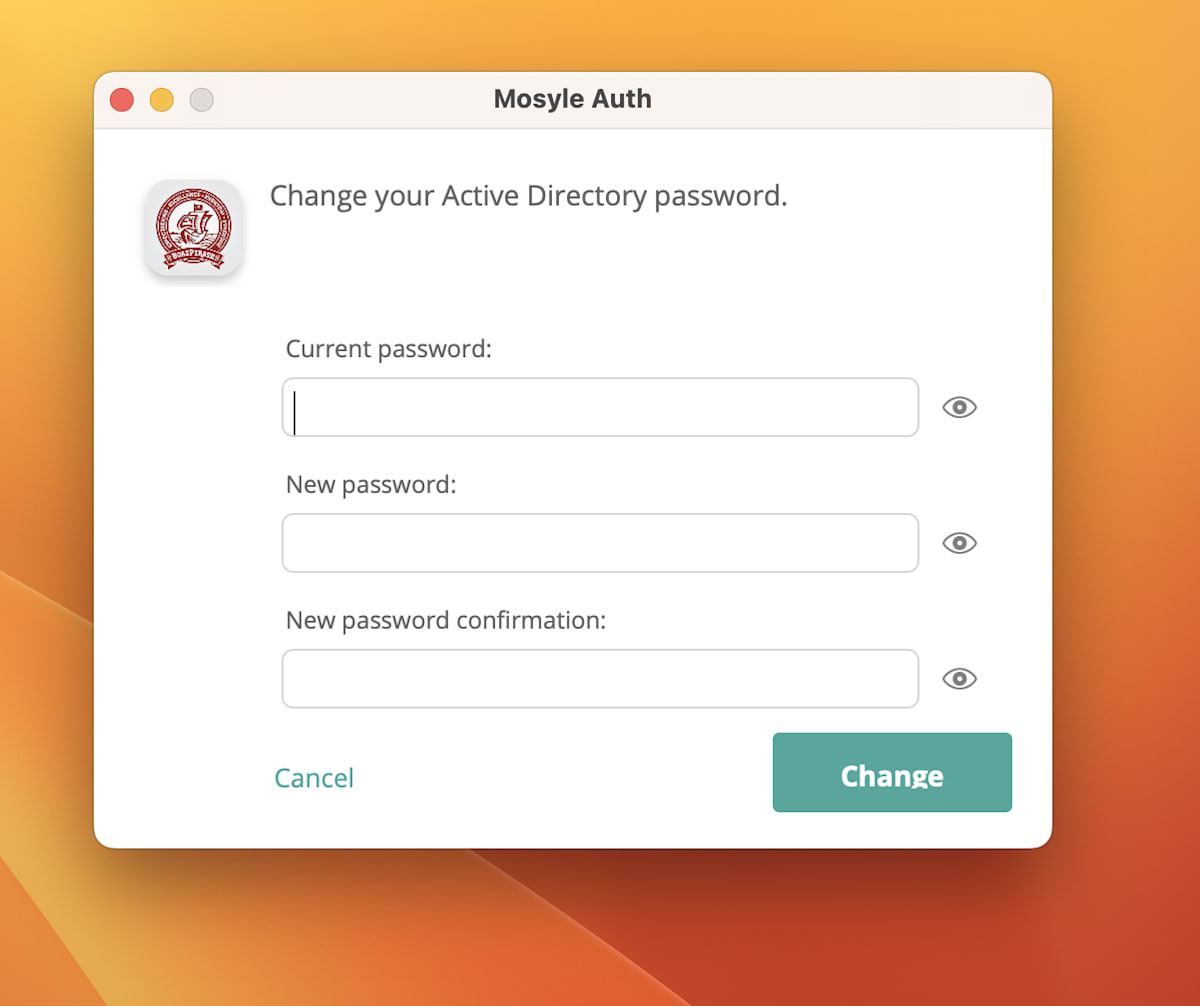
- Enter your old password, then your new password, and confirm the new password.
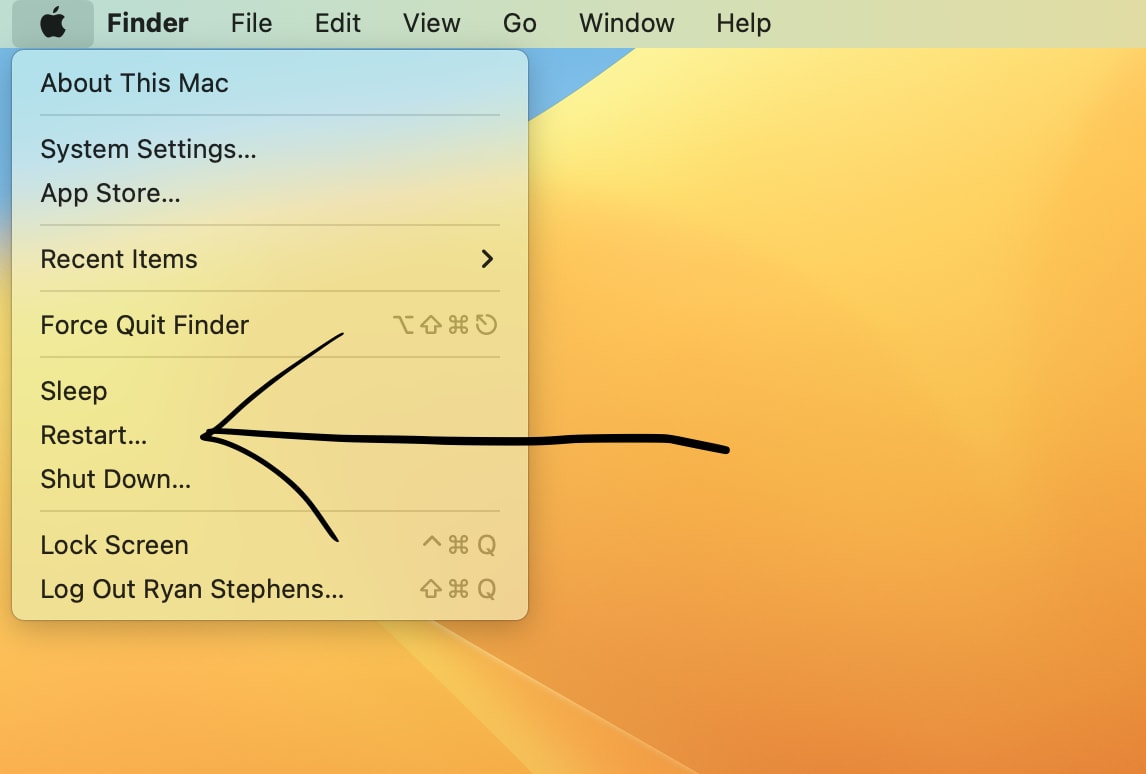
- Restart your Mac and log back in using your new password.
- Locate the triangle shape and click sign in.
If the triangle is not available you can still change your password using the office.com method

